

Umami Analytics for EmDash shows your Umami numbers inside the EmDash admin: site traffic on the dashboard, and page views next to the entries that earned them. It works with a self-hosted Umami and with Umami Cloud. Install it from its page in the EmDash plugin registry.
What it solves
When a site's traffic lives in Umami, finding out how a post did means leaving the CMS, searching Umami's page list and matching a path back to an entry. The plugin does that matching for you and puts the figures where you write. It only reads: it never changes anything in Umami or in your content.
What you see
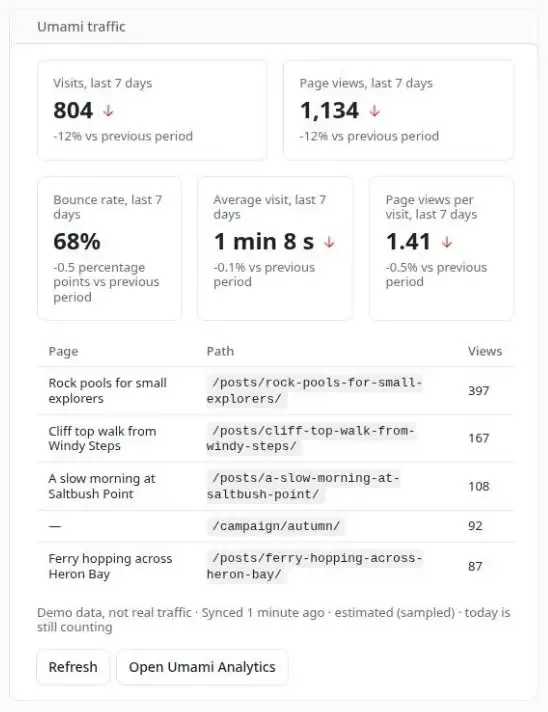
The Umami traffic card on the dashboard covers the last seven days against the week before: visits, page views, bounce rate, average visit and pages per visit, with the five most viewed pages and the entries they belong to.
The Umami Analytics page has a daily chart over 7, 30 or 90 days, charts for bounce rate and visit time, top entries, referrers and countries, and page views broken down by the event data your site attaches. Umami per entry lists every published entry with its views over 7 and 30 days, sortable and filtered by collection, with translations combined if you like.
Inside the entry editor, an Umami panel shows that entry's page views and the path they are counted at. Authors see it for their own entries, editors and administrators for every entry.
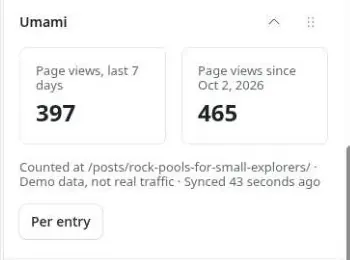
Days follow the plugin's own Time zone setting, so a view at breakfast counts on the right day.
Before you install
You need EmDash 1.0.1 or later with a plugin sandbox runner, a website in Umami with Umami's tracking script already on your site, and EMDASH_ENCRYPTION_KEY set on the site so the API key can be stored encrypted. For a self-hosted Umami, use 3.4.0 or later, the first self-hosted release with API keys, on a public hostname: EmDash refuses private addresses, so localhost, a LAN address or a VPN-only name will not work. The Umami Cloud connection follows Umami's published API but has not yet been tested against a Cloud account.
Each collection also needs a URL Pattern, under Content Types, or pages cannot be matched to entries.
Create a view-only key
An Umami API key has no permissions of its own. It can do whatever the user who created it can do, so a key made under an admin user could change or delete every website. Make one that can only read:
- In Umami, create a user with the role View only.
- Add that user to the team that holds your website, with the team role View only. If the website belongs to you and not to a team, move it to a team first.
- Sign in as that user and create a key under Settings > API keys.
Install and set it up
In the EmDash admin, open the Registry, find Umami Analytics and select Install. It asks for three permissions: read content, read the schema, and network requests to any public host. That last one is needed because a self-hosted Umami lives at an address you type in, but the plugin only ever requests the Umami API URL from its settings. Then open Plugins and the plugin's settings:
- Umami API URL. For your own Umami, its address with
/apion the end, such ashttps://analytics.example.com/api. Leave the default for Umami Cloud. - Umami API key. The view-only key. It is stored encrypted.
- Umami website ID. From the website's settings in Umami. Leave it empty and the dashboard card lists the websites the key can see.
- Hostnames to count. Empty counts your site URL and its
wwwform. - Time zone. An IANA name, matching the website's time zone in Umami. It starts at
Australia/Sydney. - Break down page views by.
categoryunless changed, up to three event data properties. - Sync every and Keep daily history for. 15 minutes and 90 days unless changed, up to 400 days.
Save, then open Plugins, Umami Analytics and select Check setup. Most setup mistakes produce zeroes rather than errors, so it walks through everything the numbers depend on and gives one sentence for each problem.
After install the plugin reads earlier days from Umami, newest first, and the charts grow backwards as they arrive. On Node, 90 days for a site of 100 entries takes about two hours. On Cloudflare Workers the sync needs the Cron Trigger from EmDash's deployment guide and catches up at the trigger's pace. The Umami Analytics page asks Umami directly whenever it opens, so it has numbers from the first minute.
Read-through and event data
If your site sends a custom event as a reader passes each part of a post, the plugin shows how far readers get: beside each entry's views, as a bar per depth in the editor panel, and as reads by day. Set the four Read-through fields to match your event, for example:
umami.track("post_read", { post: "my-post", depth: "half" });with Reading event post_read, Post property post, Progress property depth and Reading milestones half, end. The fields are empty by default, which turns read-through off.
Page views can also carry extra values, such as the category of the post being read. Attach them with the tracker's data-before-send hook, and the Umami Analytics page shows a table of page views for each value:
<script defer src="https://analytics.example.com/script.js"
  data-website-id="your-website-id"
  data-before-send="addPageData"></script>
<script>
  function addPageData(type, payload) {
    if (type === "event" && !payload.name) {
      payload.data = { category: document.body.dataset.category };
    }
    return payload;
  }
</script>
MCP tools
With Agent access on under Plugins, an AI agent can ask for the most viewed entries, the entries nobody has viewed lately, one entry's views and the site totals. The tools answer from the stored numbers, never call Umami, and say which days they cover. They need an editor or administrator.
Get it
Umami Analytics for EmDash is free, under the MIT licence, and not affiliated with Umami. Install it from the EmDash plugin registry. The source, the full README and the issue tracker are on GitHub.



No comments yet